How to Connect Zillow, Facebook, and Google Ads Leads Into One Dashboard

Quick Answer
How do I connect Zillow, Facebook, and Google Ads leads into one dashboard?
Each platform has a native API or webhook that pushes leads to a CRM in real time. Zillow uses Tech Connect (Settings → App Integrations), Facebook uses Meta's Lead Ads with direct CRM sync or a tool like Zapier, and Google Ads uses Lead Form Assets with a webhook URL in the Lead Delivery settings. Once all three point to the same CRM, every new lead lands in one unified inbox with source tags so you know exactly where each contact came from.
Key Takeaways
- Agents who respond to a new lead within 5 minutes are 21x more likely to qualify it than those who wait 30 minutes, per the MIT Lead Response Management Study conducted by Dr. James Oldroyd.
- The average agent takes over 900 minutes — roughly 15 hours — to respond to a new lead inquiry, according to Inman's 2025 Real Estate Technology Survey. A unified dashboard eliminates the biggest cause of that delay: not seeing the lead in the first place.
- Zillow's native Tech Connect API delivers leads directly to any connected CRM the moment a contact is created — no email parsing, no CSV exports, no delay.
- Facebook Lead Ads use Instant Forms that pre-fill name and contact data from the user's profile; connecting them to a CRM via Meta's direct integration or Zapier syncs that data in real time.
- Google Ads Lead Form Assets support webhook-based CRM delivery. Pasting your CRM's webhook URL into the Lead Delivery settings is all that's required to start receiving leads automatically.
Sarah Jenkins, a Seattle-based agent running Zillow Premier Agent, Facebook retargeting ads, and a Google Search campaign, closed $3.5 million in a single quarter — but nearly missed her best deal of the year. A buyer submitted a Zillow inquiry at 11:14 AM on a Tuesday. Sarah didn't see it until 4:30 PM because she was showing homes all day and her Zillow app notification was buried under 40 other alerts. By the time she called, the buyer had already booked a showing with someone else. The lead had gone cold in five hours. The irony: that same buyer had also submitted a Facebook Lead Ad form three days earlier. It was sitting, unread, in a spreadsheet export she hadn't opened.
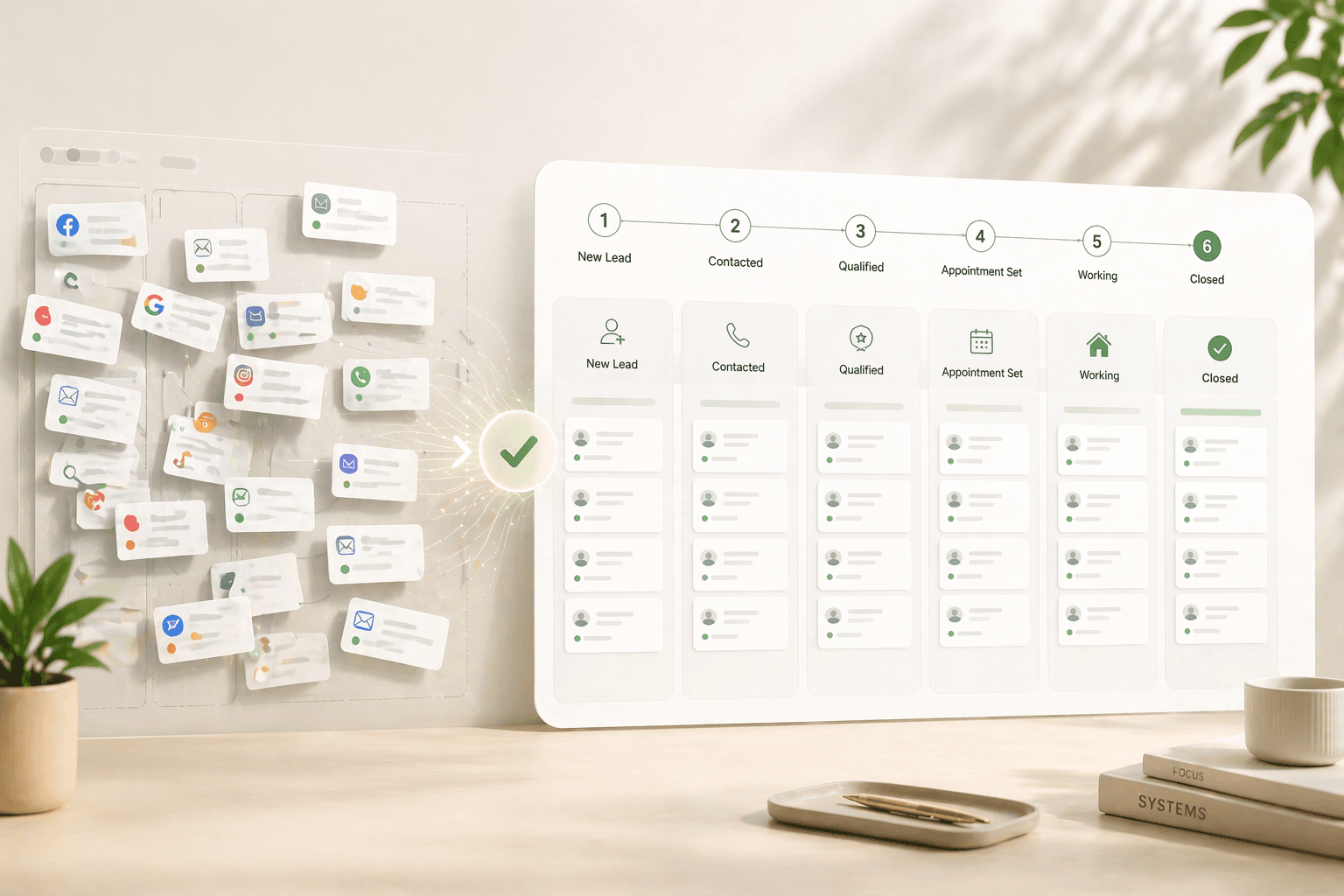
This guide gives you the exact steps to connect Zillow, Facebook Lead Ads, Google Ads, and Realtor.com into a single CRM dashboard — with source tags, real-time delivery, and zero CSV exports. By the end, every new lead will hit one inbox the moment it's submitted, regardless of which platform it came from.
The 'six tabs open' problem
Checking multiple platforms for leads isn't a minor inconvenience — it's a conversion killer. The MIT Lead Response Management Study, conducted by Dr. James Oldroyd and published in the Harvard Business Review, analyzed over 15,000 leads and found that the odds of qualifying a lead drop 21 times between the 5-minute mark and the 30-minute mark. By the time an agent finishes a showing, grabs lunch, and opens their laptop, the window is typically gone.
Stat: Agents who respond within 5 minutes are 21x more likely to qualify a lead than those who wait 30 minutes. The average agent response time is over 900 minutes (15+ hours). — MIT Lead Response Management Study, Dr. James Oldroyd; Inman Real Estate Technology Survey, 2025
The root cause isn't laziness — it's fragmentation. Zillow sends an email notification and an in-app alert. Facebook leads sit in a CSV you have to manually download from Ads Manager. Google Ads has a separate "Leads" tab inside each campaign. Realtor.com sends its own email format. If you're generating leads from three or four sources, you're context-switching between four completely different notification systems, each with its own format, cadence, and urgency signal.
The fix isn't a better habit — it's a single pipeline. When all sources push to one CRM, you see a new lead the instant it arrives, regardless of which platform generated it. The response time problem largely solves itself.
What you need before you connect anything
The integrations in this guide require three things before you start: an active account on each lead platform, a CRM that accepts inbound leads via API or email parsing, and admin-level access to both. If you're a team lead, every agent on your team who receives Zillow leads will need to complete their own Tech Connect setup — Zillow's routing only syncs to the account that owns the lead.
The most important preparation step is deciding your source-tagging convention before you set anything up. Every lead that enters your CRM should carry a tag that identifies where it came from: "Zillow," "Facebook-Ads," "Google-Ads," "Realtor-com," and so on. This isn't optional hygiene — it's how you'll eventually know which platforms are producing closings versus just producing volume. NAR's 2024 Technology Survey found that 32% of agents cite CRM platforms as their top tool for quality leads, yet most agents have no idea which of their paid sources actually converts at the highest rate because they never tagged leads by source consistently.
You'll also want a test lead from each platform before going live. Every major integration tool — Zapier, LeadsBridge, your CRM's native connector — has a "send test lead" function. Use it. A broken webhook silently drops every lead that hits it, and you won't know until you notice your conversion rate has collapsed.
Connecting Zillow leads
Zillow's native integration is called Tech Connect, and it's the cleanest of the four connections in this guide. When properly configured, a new Zillow Premier Agent contact appears in your CRM within seconds of being created — no email parsing, no delay, no manual exports. The integration also supports two-way sync on lead stages, meaning status updates you make in your CRM flow back to your Zillow Premier Agent app.
Here's the exact setup path: Log into your Zillow Premier Agent account. Click your profile photo in the top-right corner and select Settings. Under the General menu on the left, click App Integrations. Click Add, then choose your CRM from the dropdown and follow the authorization prompts. If your CRM isn't listed, Zillow also supports a raw webhook via its API, or you can use Zapier's Zillow Tech Connect trigger — which fires on "New Contact" — to route leads to any destination app.
Note: If you're a team lead, each team member who receives routed Zillow leads must complete this setup individually. Leads assigned through Zillow routing only sync to the CRM linked to the receiving agent's Tech Connect account — not to the team lead's account. — Zillow Help Center, App Integrations Setup
One thing to watch: any leads received before you activate the integration will not be retroactively synced. Zillow only pushes leads created after the connection goes live. For agents moving from manual tracking to a CRM mid-quarter, manually importing your existing Zillow contacts first is worth the 20 minutes it takes.
Connecting Facebook Ad leads
Facebook Lead Ads use Instant Forms — forms that open natively inside the Facebook or Instagram feed and pre-fill the user's name and contact details from their profile. This makes them fast to fill out, which is why they produce high volume. The tradeoff is that leads from Instant Forms tend to have lower intent than Zillow leads; a user who tapped an ad on autopilot is different from someone who actively searched for a 3-bedroom in a specific zip code.
The integration problem is that Facebook doesn't push leads anywhere automatically. If you don't connect your lead forms to a CRM, those leads sit in a table inside Ads Manager — downloadable only as a CSV, only manually. Many agents lose a significant portion of their Facebook leads this way, not because of poor follow-up but because they never see the leads at all.
To connect: In Meta Business Suite, go to your Page settings, then Integrations, then Leads Access. From there, Meta supports direct CRM connections for major platforms including Salesforce, HubSpot, and Mailchimp. For CRMs not natively listed, Zapier's "New Lead" trigger on Facebook Lead Ads connects to virtually any destination — including your own webhook endpoint. The specific steps: in Ads Manager, navigate to the lead form you want to connect, select "Export leads," choose "CRM integration," and follow the OAuth flow for your platform. If using Zapier, set the trigger to "New Lead" from Facebook Lead Ads and map the form fields to the corresponding CRM fields.
Field mapping matters: Facebook forms let you collect custom fields beyond name, email, and phone — property type interest, timeline, budget range. Map these fields to custom CRM fields before you go live, not after. Unmapped fields are silently dropped on sync.
Use the Lead Ads Testing Tool (accessible in Meta for Developers) to send a test lead through the exact form you're integrating. This creates a dummy submission that travels through your entire pipeline — from Facebook to Zapier or native connector to CRM — so you can confirm field mapping before real leads start flowing.
Connecting Google Ads leads
Google Ads Lead Form Assets (formerly lead form extensions) place a contact form directly inside your search, display, Performance Max, or video ads. When a signed-in user clicks your ad and submits the form, their contact details — which Google pre-fills from their account — go directly into your lead delivery destination. The leads are high-intent by nature: someone searching "homes for sale in [city]" who submits a contact form in the search results is much closer to a transaction than someone who tapped a social ad while scrolling.
Google offers two delivery methods. The manual method is a CSV download inside Google Ads — avoid it. The automated method uses a webhook. In your campaign, click on the Lead Form Asset, find the Lead Delivery section, select "Webhook," and paste your CRM's webhook URL along with the webhook key your CRM provides. Google also supports direct integration via Zapier, which is listed as an option in the same Lead Delivery section.
The setup path inside Google Ads: Campaigns → select your campaign → Assets → Lead Form → edit the form → scroll to Export leads from Google Ads → paste webhook URL and key → click "Send test data" to verify the connection → Save.
Lead quality note: Google Lead Form Assets work across Search, Display, and Performance Max campaigns but are unavailable for certain ad categories. Lead forms on Search campaigns tend to produce higher-intent contacts than those on Display; if you're running both, tag them separately in your CRM (e.g., "Google-Search" vs "Google-Display") to track conversion rates by placement.
One important permission note: you must be logged into a Google account with admin-level access to the Google Ads account. Without that, the connected ad accounts and their lead forms won't appear in the integration settings. If you manage ads for a team or brokerage, confirm access level before spending 30 minutes troubleshooting a permissions issue.
Connecting Realtor.com and other sources
Realtor.com uses email forwarding and a direct API called Lead Delivery. The API method is cleaner: in your Realtor.com account, navigate to Settings → Lead Settings → Add Lead Delivery API, then select your CRM from the dropdown, paste your CRM's API key, and enter your login email as the Application Login Name. If your CRM is Follow Up Boss, the integration is one of the deepest available — it not only syncs lead contact data but also pulls in each lead's full Realtor.com browsing history, showing you which properties they viewed before submitting their inquiry.
For the email parsing method (useful if your CRM isn't on Realtor.com's API list): configure a dedicated email address for lead notifications, point Realtor.com's "Connections Plus," "Profile Leads," and "Courtesy Leads" settings to that address using Lead Forwarding in plain-text format, and then set up email parsing in Zapier or Mailparser to extract lead fields and push them to your CRM. Note that you need to configure all three lead types individually inside Realtor.com settings — they don't inherit from each other.
For sources not covered above — website contact forms, open house sign-in sheets digitized via a tablet app, referral partner platforms — the email parsing method works for any source that sends a consistent notification email. Set up a dedicated lead@yourdomain.com address, point all sources at it, and parse the inbound emails with consistent field extraction rules. The key is consistency: if Zillow changes its notification email format (which it has done), your parser breaks silently. Webhook-based integrations are inherently more stable, so migrate to native API connections whenever a platform supports them.
What one view actually looks like — and what to do with it
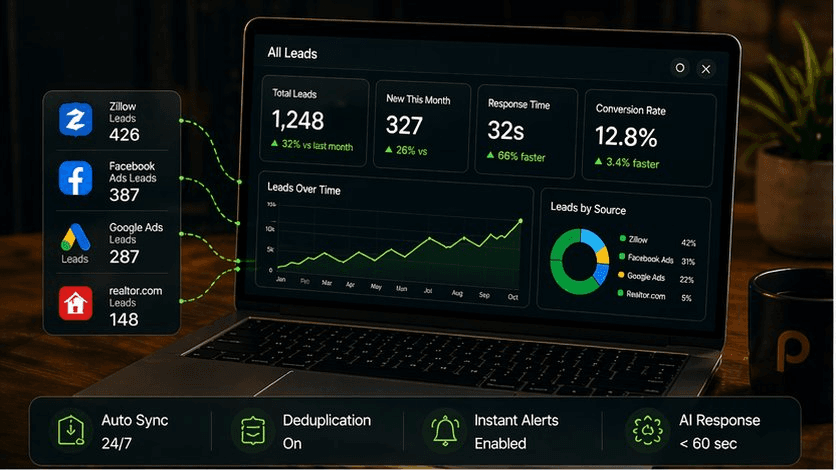
Once all four sources are connected, your CRM's lead inbox shows every new contact in a single chronological feed, tagged by source. A Zillow lead that came in at 9:03 AM, a Facebook lead from 9:47 AM, and a Google lead from 11:15 AM all appear in the same list, sortable by time received or lead score. You no longer have to decide which app to check first — you check one place, and everything is there.
The source tag is where the real value compounds over time. After 90 days of consistent tagging, you can pull a report showing the lead-to-appointment and appointment-to-close rates broken down by source. You'll likely find that Zillow and Realtor.com leads close at a meaningfully higher rate than top-of-funnel Facebook leads — reflecting that bottom-of-funnel property platform leads convert at 5–9% for average performers versus 1–2.5% for paid social, according to data from Ylopo's 2025 lead conversion benchmarks. That data tells you where to reallocate your ad budget and how aggressively to follow up with each source.
Benchmark: Bottom-of-funnel leads from Zillow and Realtor.com convert at 5–9% for average teams. Top-of-funnel Facebook and Google Ads leads convert at 1–2.5% with standard follow-up processes. — Ylopo Lead Conversion Rate Benchmarks, 2025
The immediate tactical benefit is simpler: you respond faster. When a new lead arrives in one unified inbox — instead of being buried in a platform-specific app you check sporadically — your average response time drops from hours to minutes. That single change, per the MIT research, can increase your qualification rate by up to 21 times. The integration work is a few hours of one-time setup. The payoff compounds on every lead you receive from that day forward.
How Pinova handles this automatically
Pinova's Lead Inbox is the single-dashboard layer described above, built natively into the platform. It connects to Zillow via Tech Connect, Facebook Lead Ads via Meta's direct API, and Google Ads via webhook — and tags every inbound contact with its source at the moment it arrives. When a new lead lands, Pinova's AI immediately sends a personalized first-touch message on the agent's behalf, pulling the property address or search criteria from the lead form data to make the response feel specific rather than automated. The agent sees the lead in their unified inbox, the AI's opening message already sent, and the conversation ready to continue.
Key Statistics: Real Estate Lead Response and Integration
| Key Statistic / Finding | Source & Year |
|---|---|
| Leads contacted within 5 minutes are 21x more likely to qualify than those contacted after 30 minutes | MIT Lead Response Management Study, Dr. James Oldroyd |
| The average real estate agent takes 917 minutes (over 15 hours) to respond to a new lead inquiry | Inman Real Estate Technology Survey, 2025 |
| 78% of customers buy from the first business to respond to their inquiry | Lead Response Management Study, InsideSales.com |
| Bottom-of-funnel property platform leads (Zillow/Realtor.com) convert at 5–9% for average teams; Facebook/Google Ads leads convert at 1–2.5% | Ylopo Lead Conversion Rate Benchmarks, 2025 |
| Zillow receives an average of 310–365 million monthly visits, making it the most-visited real estate website | The Close, Real Estate Lead Generation Statistics |
| 92% of U.S. realtors use Facebook for lead generation | ReSimpli Real Estate Marketing Statistics |
| Responding to a lead within 1 minute increases conversions by 391% compared to responding after 2 minutes | Velocify Lead Response Study |
| Average real estate industry lead conversion rate across all online sources is 2.4% | Ruler Analytics, via The Close |
| 67% of buyers and 82% of sellers only contacted one real estate agent — the first to respond nearly always wins | NAR Home Buyer and Seller Generational Trends Report |
| Google Ads offers 4,300+ CRM integration options for lead form delivery | Deep Footprints Digital |
| Personalization in lead management systems can improve sales by up to 20% | ReSimpli Real Estate Marketing Statistics |
| After one hour without contact, the likelihood of reaching a lead drops by 10x | MIT/InsideSales.com Lead Response Management Study |
Frequently Asked Questions
How do I connect Zillow leads to my CRM?
Zillow uses a feature called Tech Connect to send leads directly to third-party CRMs. Log into your Zillow Premier Agent account, go to Settings, then App Integrations under the General menu, click Add, and select your CRM from the dropdown. The integration is two-way — stage updates in your CRM sync back to Zillow's Premier Agent app. If your CRM isn't listed, you can use Zapier's Zillow Tech Connect trigger, which fires on "New Contact" and routes leads to any destination.
Why are my Facebook leads sitting in Ads Manager instead of my CRM?
Facebook Lead Ads don't push leads anywhere by default — you have to actively connect your Instant Forms to a CRM. In Meta Business Suite, go to Page settings, then Integrations, then Leads Access, and authorize your CRM. Alternatively, use Zapier's Facebook Lead Ads trigger. Until you set up this connection, leads accumulate in a CSV-only table inside Ads Manager that requires manual export, which is the primary reason most agents have a multi-day gap between lead submission and first contact.
How long does it take to connect all lead sources to one dashboard?
For an agent with existing accounts on Zillow, Facebook Ads, and Google Ads, the full integration typically takes two to four hours. Zillow Tech Connect is the fastest (15–30 minutes if your CRM is on their supported list). Facebook requires authorizing your Page and mapping form fields to CRM fields (30–60 minutes). Google Ads webhook setup takes about 20 minutes once you have your CRM's webhook URL and key. Building and testing source tags in your CRM adds another 30 minutes. The one-time investment pays back within days.
What's the fastest way to respond to real estate leads?
Automated first-touch messaging is the most reliable method. The MIT Lead Response Management Study found that the 5-minute window is the most critical variable in lead qualification — a gap that human availability can't consistently close during showings, calls, or evenings. Setting up an automated SMS or email that fires the moment a new lead enters your CRM — personalized with the property address or area from the lead form — keeps the conversation moving while you're unavailable, so the follow-up call lands on a warmer contact.
Do Zillow, Facebook, and Google leads have different conversion rates?
Yes, meaningfully so. Zillow and Realtor.com are bottom-of-funnel — users are actively searching for properties, so they convert at 5–9% for average teams. Facebook and Google Ads leads are top-of-funnel, converting at 1–2.5% without an optimized follow-up process, per Ylopo's 2025 benchmarks. This doesn't mean paid social isn't worth running, but it does mean Facebook leads typically require a longer nurture sequence (30–90 days) before converting, while a Zillow lead who hasn't heard from you in 48 hours is probably already working with someone else.
How do I connect Realtor.com leads to my CRM?
Realtor.com supports both API and email parsing methods. For the API method: log into Realtor.com, go to Settings → Lead Settings → Add Lead Delivery API, select your CRM, and paste your CRM's API key. You'll need to configure "Connections Plus," "Profile Leads," and "Courtesy Leads" settings separately — they don't inherit from each other. For CRMs not on Realtor.com's list, point your lead notification email to a dedicated address, then use an email parser (Zapier Parser, Mailparser) to extract lead fields and push them to your CRM.
What source tags should I use in my CRM for lead tracking?
Use platform-specific tags rather than broad categories. "Zillow," "Facebook-Ads," "Google-Search," "Google-Display," "Realtor-com," and "Website-Form" give you enough granularity to track conversion rates by source. Avoid tags like "Online" or "Paid" — they're too broad to be actionable. After 60–90 days of consistent tagging, you can report on cost per qualified lead and cost per closing by source, which is the data you need to make informed decisions about where to increase or cut your ad spend.
Can I connect multiple Google Ads accounts to one CRM dashboard?
Yes. Google Ads Lead Form integration via platforms like HighLevel, Zapier, and most major CRMs allows you to connect multiple Google Ads accounts under a single Google login and manage all associated lead forms from one place. Each form can be mapped to the same CRM destination with different source tags, so leads from different campaigns or accounts still flow into one unified inbox while remaining identifiable by their origin.
📚 Related Reading
Amaan Sheikh
— Co-Founder & CEOAmaan Sheikh is the co-founder and CEO of Pinova. He sets the product direction, builds the partnerships, and personally works with every founding partner. His focus is making enterprise-grade real estate technology accessible to ambitious agents and teams — without the enterprise price tag.